Set Up Safe Zones on a Family Member's Phone — Without Touching It
Until recently, Safe Zones only worked on your own device — everyone had to set up their own Home, School, or Office zones. That's changed. Guardians can now add and manage Safe Zones for anyone in their circle, remotely.
July 2026 · 6 min read
What's a Safe Zone, quickly
A Safe Zone is a virtual boundary around a real place — home, school, office, or anywhere else that matters. Raksha watches quietly in the background and sends a soft notification every time the device enters or leaves that boundary. No full-screen ring, no siren — just a quiet "Aarav left Home" or "Aarav arrived at School" push to everyone in the circle.
That's the key difference from Arrival Alarm: Safe Zones are for places you check repeatedly — home, school, work. Arrival Alarm is for a one-time loud alert on a single trip, like "let me know the moment the cab reaches the airport."
Why remote setup actually matters
Kids don't always know their own home address or school's exact boundary. A parent can now do it for them from their own phone.
No need to walk an elderly parent through sliders and map pins over a phone call — set it up yourself and it just starts working on their device.
If the phone is already with your child at a hostel or with a parent in another city, you don't need it back in your hands to add a zone.
Moved cities, or your child started at a new school? Update their zones remotely the same day, without waiting to see them in person.
What it looks like before you've added any zones
Opening Safe Zones for the first time — whether it's your own device or a family member's — shows an empty state until at least one zone is added:
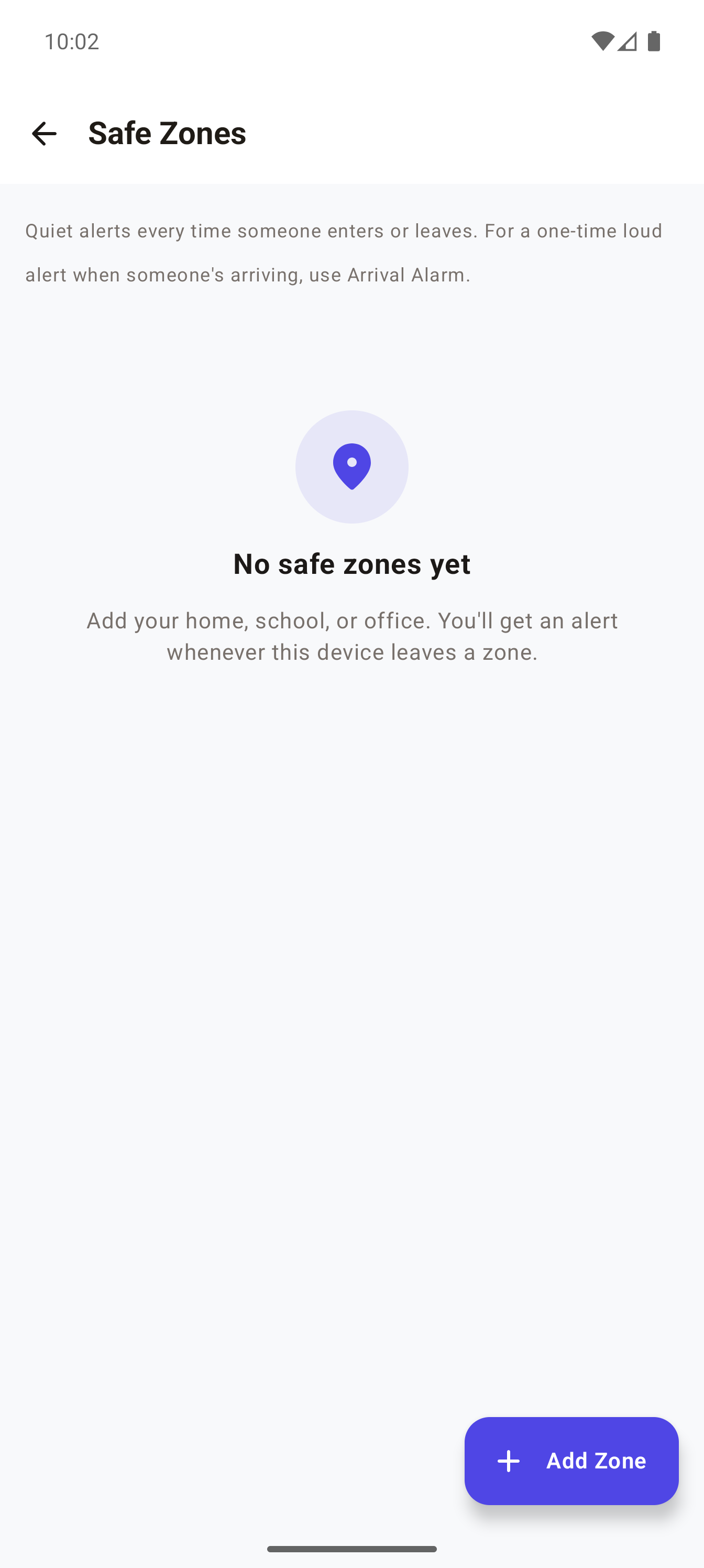
"No safe zones yet" — the starting point, before you add Home, School, or Office
How to set up a Safe Zone for a family member
⏱️ Takes about 2 minutes
- Open Raksha and go to the Circle tab
- Tap the family member you want to set a zone for
- Tap View full details
- Under Explore, tap Safe Zones
- Tap Add Zone (bottom right)
- Pan the map until the pin sits on the right spot — search by name if it's easier than panning
- Type a Zone Name (required — "Home", "School", etc.)
- Pick a Type — Home, School, Office, or Custom
- Adjust the Radius with the slider — watch the live circle on the map resize as you drag
- Tap Add Safe Zone
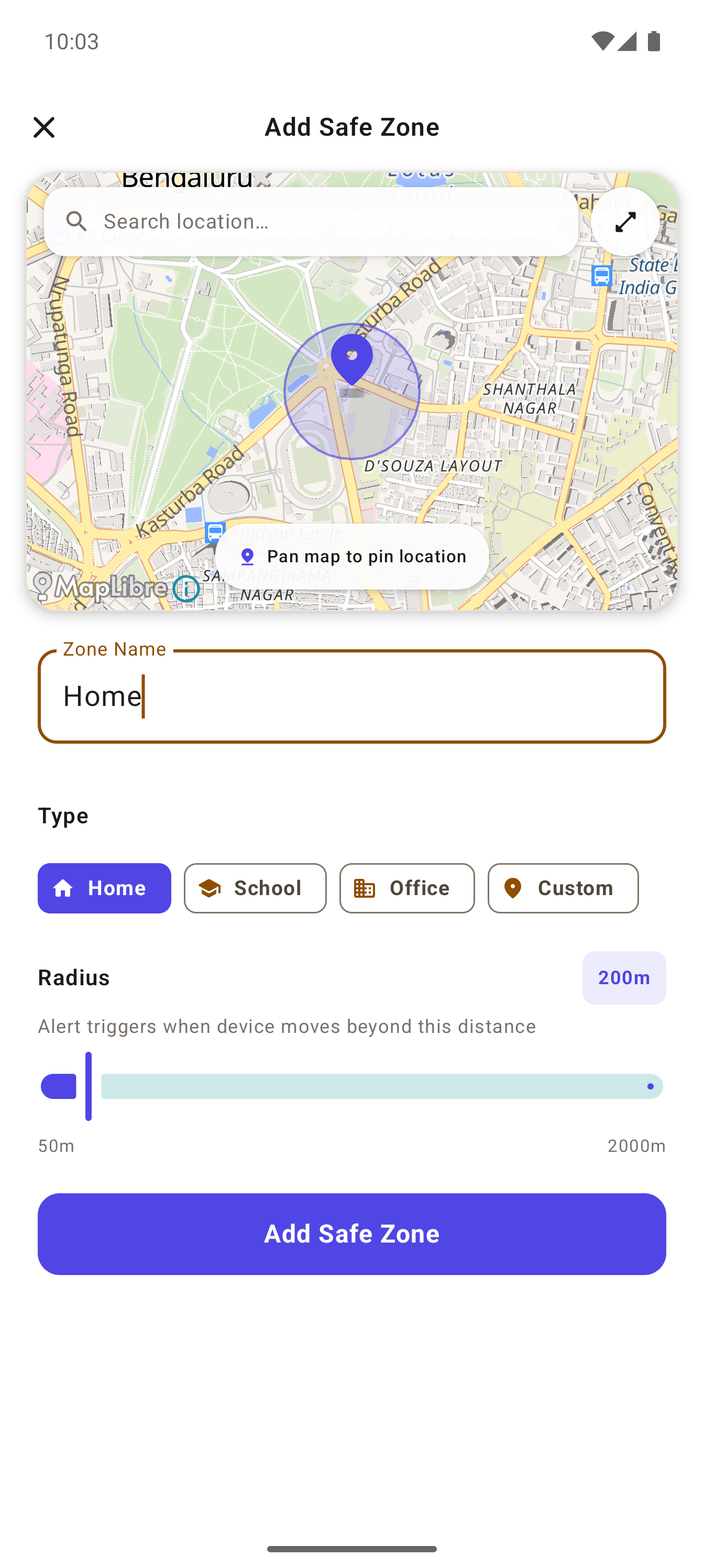
The radius circle updates live as you drag the slider or pan the map — so you can see exactly what area will trigger the alert
What happens on their end
Nothing disruptive. The zone syncs to their device automatically the next time it's online — there's no approval prompt, no popup on their phone. They don't need to do anything at all; the quiet enter/exit notifications just start going out to the family circle from that point on.
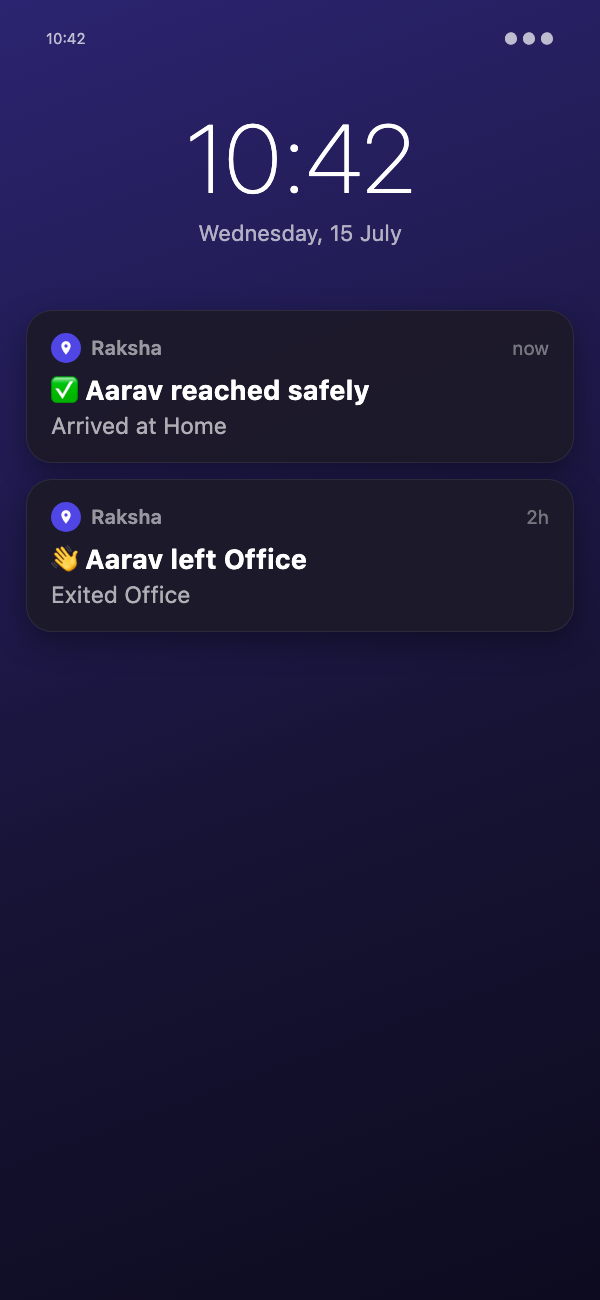
What the family circle actually sees — a quiet push each time, not a full-screen ring
FAQ
A: No — that's the whole point of remote setup. You only need them to be in your Raksha circle. The zone gets pushed to their device automatically.
A: Yes — Safe Zones for your own device works exactly as before, from Settings → Safe Zones.
A: Up to 5 per device, whether you set them up yourself or remotely for a family member.
A: No — Safe Zone notifications are quiet pushes, not a full-screen ring. If you want a one-time loud alert for a specific trip, use Arrival Alarm instead.
A: No more than before — Safe Zones use Android's low-power geofencing API on their device regardless of who set the zone up.
Related: Geofencing basics and radius guide · Arrival Alarm setup guide