How to Use Raksha:
Complete Setup Guide
From installing the app to adding family members, triggering SOS, and using remote controls — everything you need to know to get Raksha working for your family.
Last updated: May 2026 · 7 min read
Step 1: Install and Sign In
Download Raksha from the Google Play Store — search for "Raksha family safety" or scan the QR code on our website. The app is free to install.
- Open the app — you'll see the Raksha onboarding screens explaining what the app does
- Tap Get Started
- Enter your Indian mobile number — Raksha uses OTP via SMS to verify you (no passwords needed)
- Enter the 6-digit OTP sent to your number
- Enter your name — this is what family members will see when you appear on their map
Every family member needs their own account. Install Raksha on each phone and sign in separately — the app links phones together through the family circle, not through a shared login.
Step 2: Grant the Required Permissions
After sign-in, Raksha will walk you through a permissions screen. These are essential for the app to function — skipping them means core features won't work.
Location — Always Allow (most important)
When the location permission dialog appears, select "Allow all the time" — not just "While using the app." This is what lets Raksha update your location even when the screen is off and the app is in the background. Without this, your family will only see your location when you have the app open.
Notifications
Required to receive SOS alerts from family members. If a family member triggers an emergency, Raksha sounds a loud alert on your phone — this only works if notifications are enabled.
Phone Access
Used to read your SIM's phone number automatically, so you don't have to type it during setup.
Camera
Used for anti-theft snapshots — silent photos captured when an SOS triggers or shake is detected, helping identify who has your phone.
Unrestricted Background Activity
This opens your phone's battery settings. Find Raksha in the list and select "Unrestricted" (or "Don't optimize"). This prevents your phone's battery saver from killing Raksha when the screen is off — especially important on Motorola, Xiaomi, and Samsung devices which aggressively restrict background apps.
If you skip Unrestricted Background Activity: Your location will stop updating within 5–15 minutes of the screen going off. You can grant it later via Settings → Battery → Battery optimization → Raksha → Don't optimize.
Step 3: Add Family Members to Your Circle
Once set up, you'll land on the Dashboard. The "My Circle" section shows your family members — it'll be empty until you add someone.
- Tap Add next to "My Circle" (or go to the Circle tab at the bottom)
- A QR code and a shareable link appear
- Share the link via WhatsApp, or let the other person scan your QR code with their Raksha app
- The other person will see a request — they tap Accept
- Both of you now appear on each other's map and circle
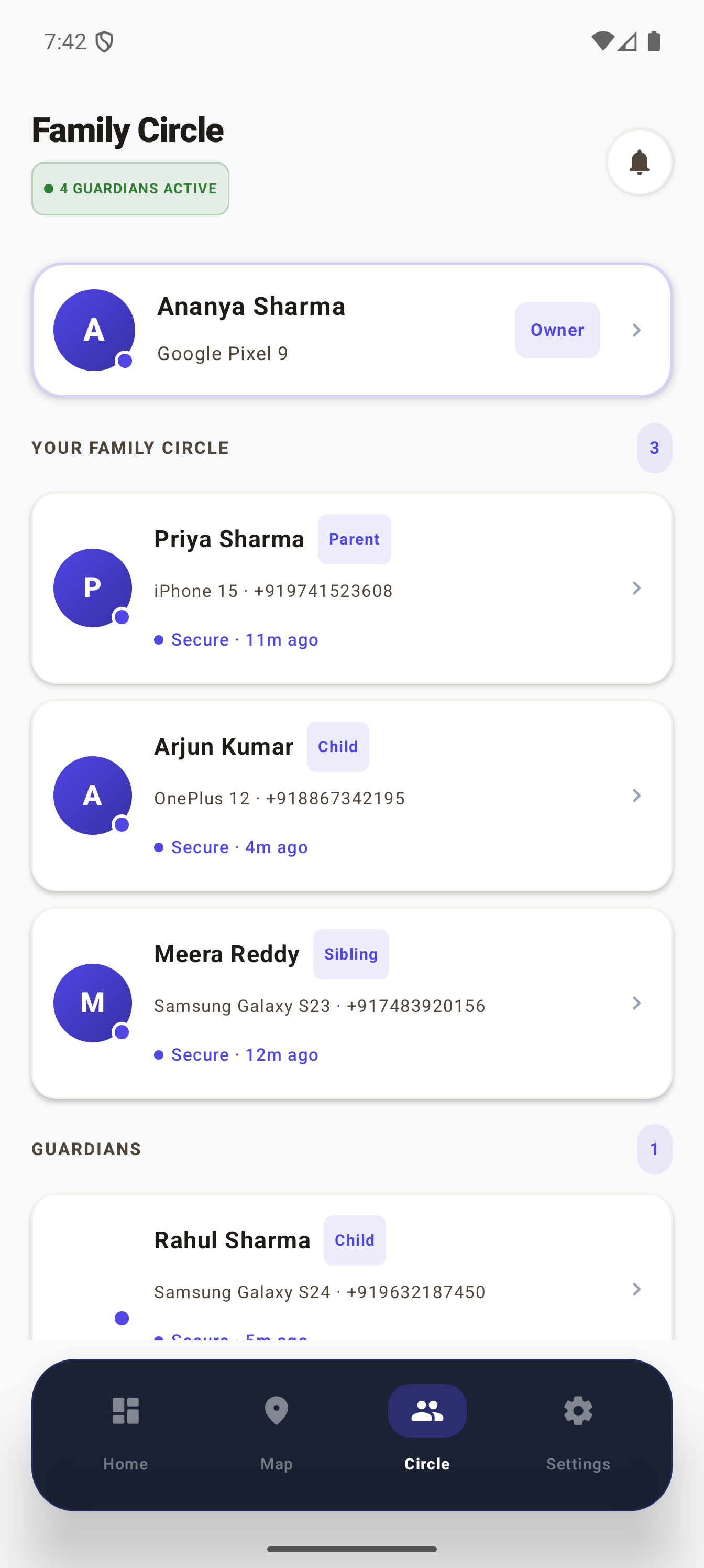
Family Circle — all your members in one place
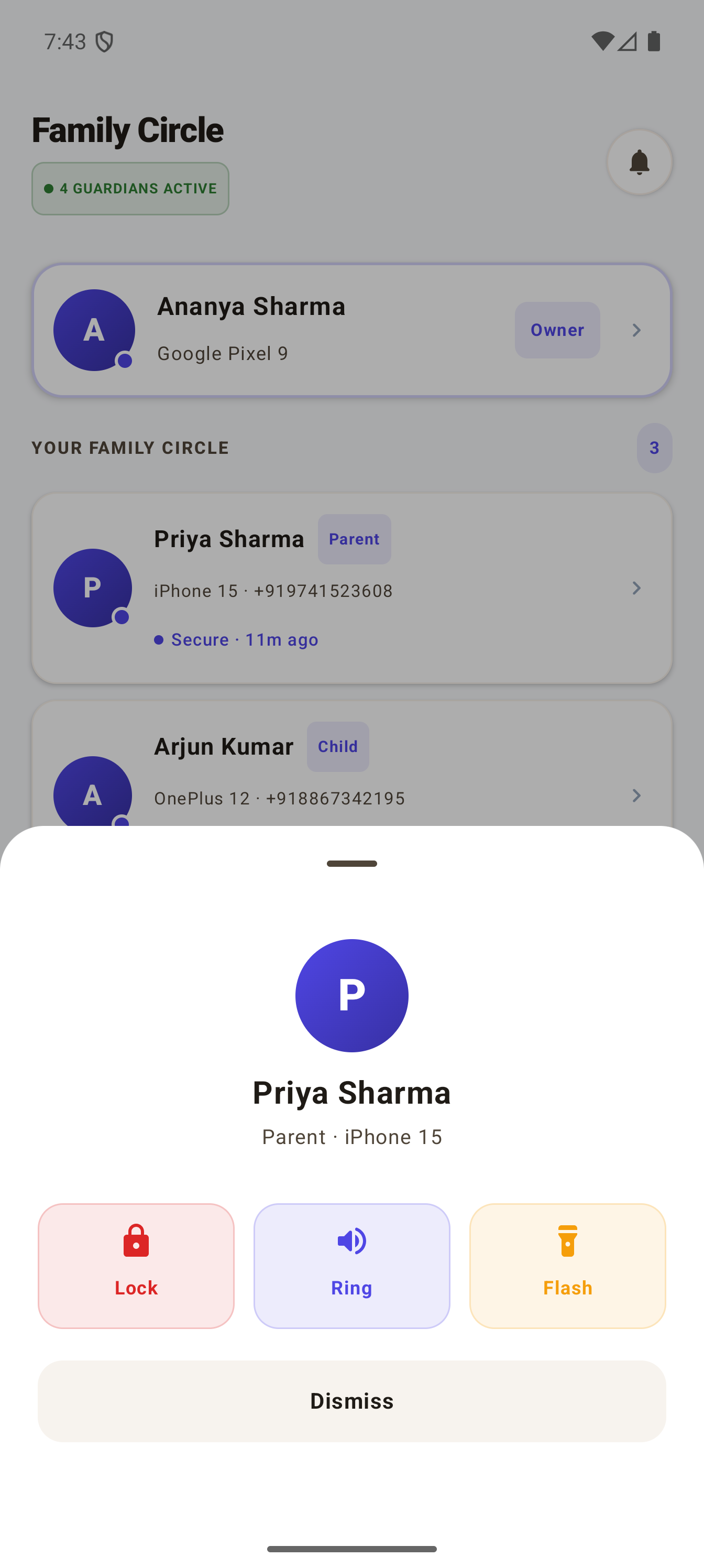
Tap any member to open their controls
Mutual visibility: When you add someone to your circle, they can also see your location. This is by design — Raksha is a family safety tool, not a hidden tracker. Everyone in the circle sees everyone else.
Step 4: Assign Guardians (Optional but Recommended)
A Guardian is a trusted family member who receives your SOS alerts and can use remote controls on your device. When you trigger an SOS, guardians are immediately notified with your live location, a loud alert sound, and a "Track on Map" button.
To assign a guardian: go to the Circle tab → tap a member → toggle "Set as Guardian". You can have multiple guardians — for example, both parents as guardians for a child's phone.
Guardians appear separately in the circle list under the "Guardians" section so you can tell at a glance who will be alerted in an emergency.
Understanding the Dashboard
The Dashboard is your home screen inside Raksha. Here's what you'll see:
- Status card — your current location status (Protected / Active), battery level, network, and device name
- SOS button — the large red button. Press it in an emergency to alert all your guardians instantly
- My Circle — a row of your family members with their online status
- Live Radar — a mini map showing where everyone in your circle is right now
- Recent Activity — a feed of SOS events and location updates
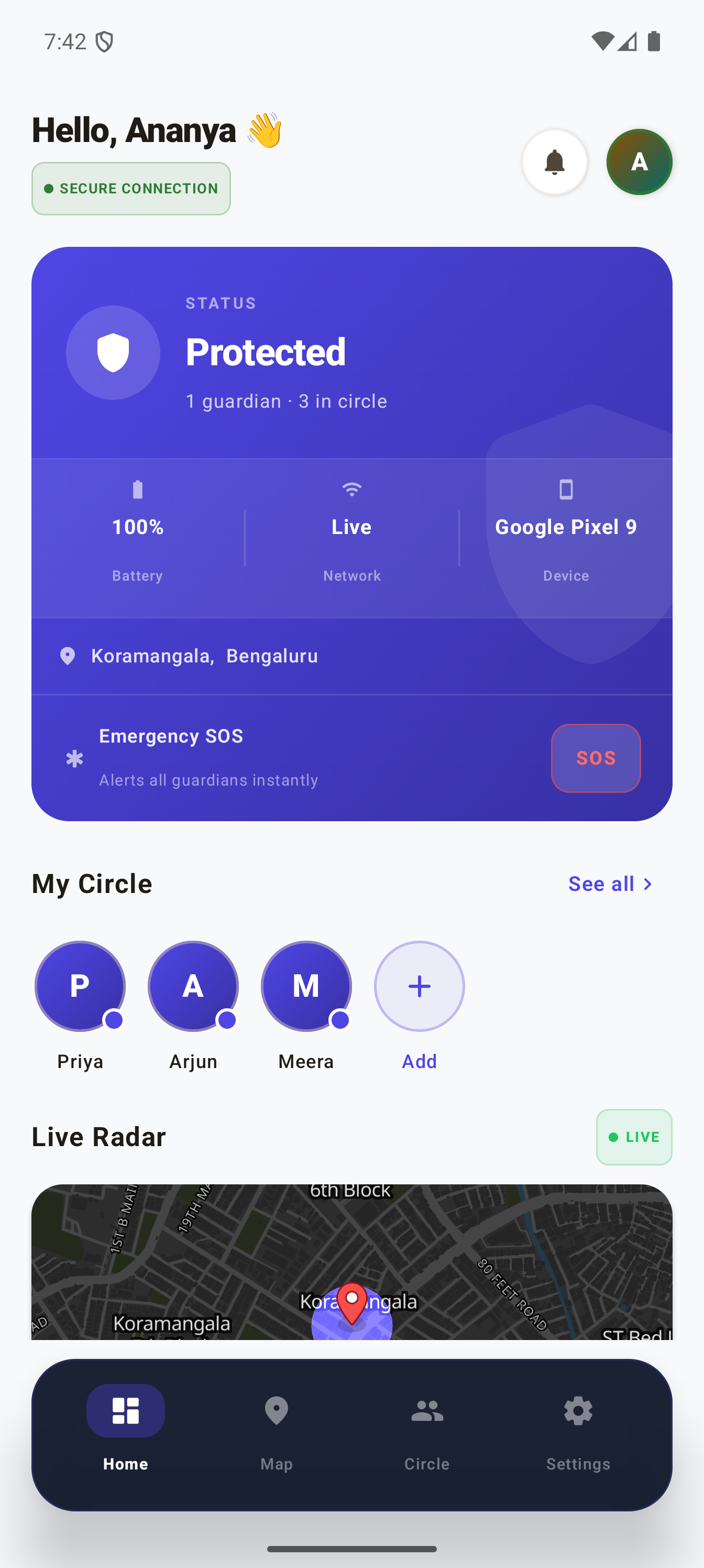
Dashboard — your safety at a glance
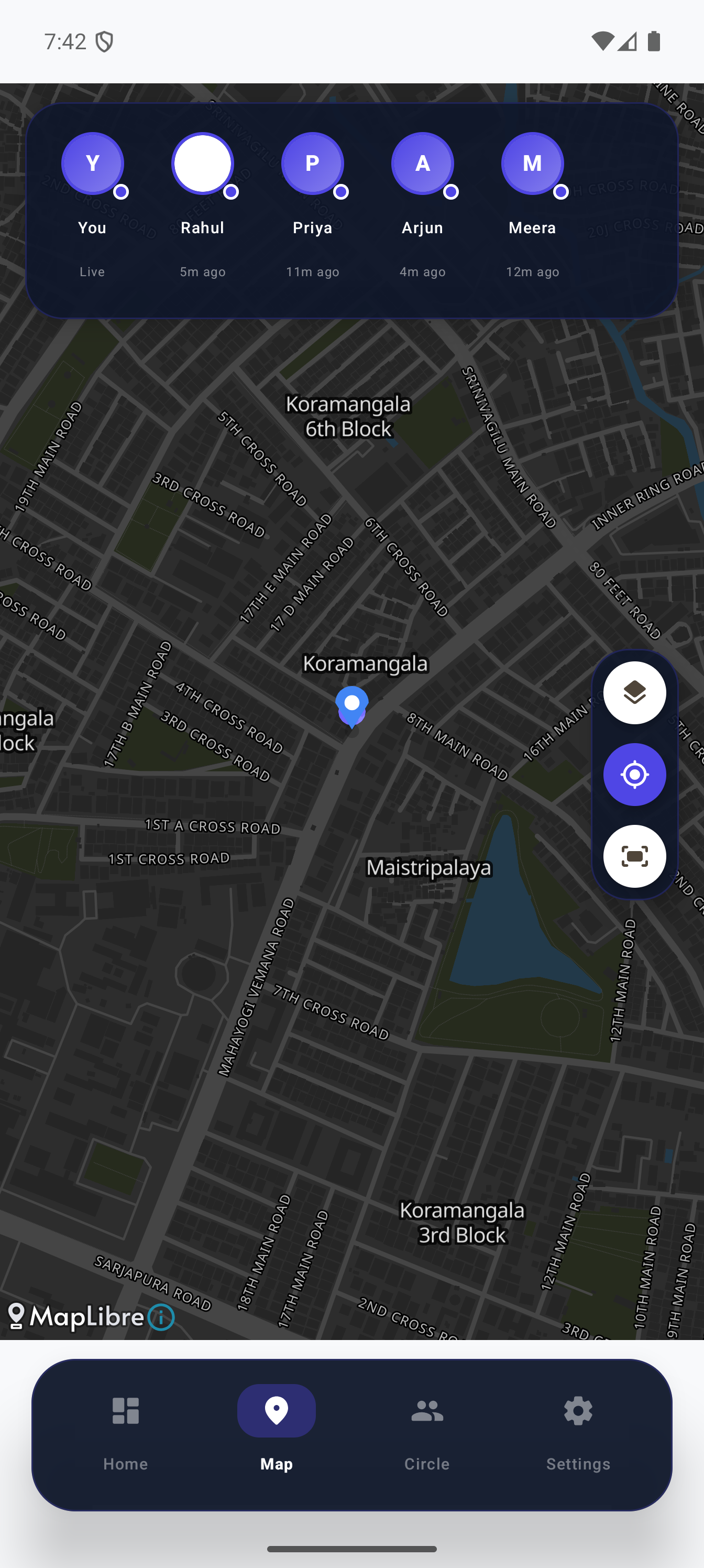
Map — see everyone's location in real time
If a family member triggers an SOS while you're in the app, a red alert banner appears at the top of the dashboard with their name and quick-action buttons to track them on the map or call them directly.
Triggering an SOS Alert
The SOS button is Raksha's most important feature. When pressed:
- All your guardians receive a loud emergency alert on their phones — even if their phone is on silent
- Your live GPS location is shared with them in real time
- Anti-theft snapshots are taken silently using your front camera
- Your screen shows a lock screen with an emergency message and your guardians' contact details
Shake to SOS
You don't need to open the app to trigger an SOS. Shake your phone vigorously — Raksha detects the shake and automatically sends the SOS alert to your guardians. This is useful in situations where you can't safely open an app. There's a 30-second cooldown between shake triggers to prevent accidental alerts.
Cancelling an SOS
If you triggered SOS accidentally, open the app and tap Cancel SOS. Your guardians will be notified that the alert was cancelled.
Remote Controls: Ring, Flash, and Lock
From the Circle tab, tap any family member to open their control panel. You can send remote commands to their device — useful when a phone is lost or someone isn't responding.
Lock, Ring, and Flash — tap any member to access these
Ring
Makes the family member's phone ring at full volume — even if it's on silent or Do Not Disturb. Useful when someone doesn't pick up calls or when a phone is lost somewhere in the house. Tap Stop to stop the ring.
Flash
Turns on the flashlight on the family member's phone and makes it blink rapidly. Use this to locate a phone in a dark room, under a cushion, or in a bag.
Remote Lock (Premium)
Puts the family member's phone into Lost Mode — the screen locks and shows a message with emergency contact info. This is for situations where a phone is stolen: locking it prevents the thief from accessing personal data while still showing your contact details if the finder wants to return it. Tap Unlock to remove lost mode remotely.
Anti-theft Snapshots (Premium)
When SOS is triggered or a shake is detected, Raksha silently takes photos using the front camera. These appear in the Snapshots section of the circle member's card — helping you see who picked up the phone after it was lost or stolen.
Note: Ring, Flash, and Snapshots work even when the phone screen is off, thanks to Raksha's background service. The tracked phone must have granted Unrestricted Background Activity during setup for this to work reliably.
Settings and Your Profile
The Settings tab shows your profile, device info, and security options.
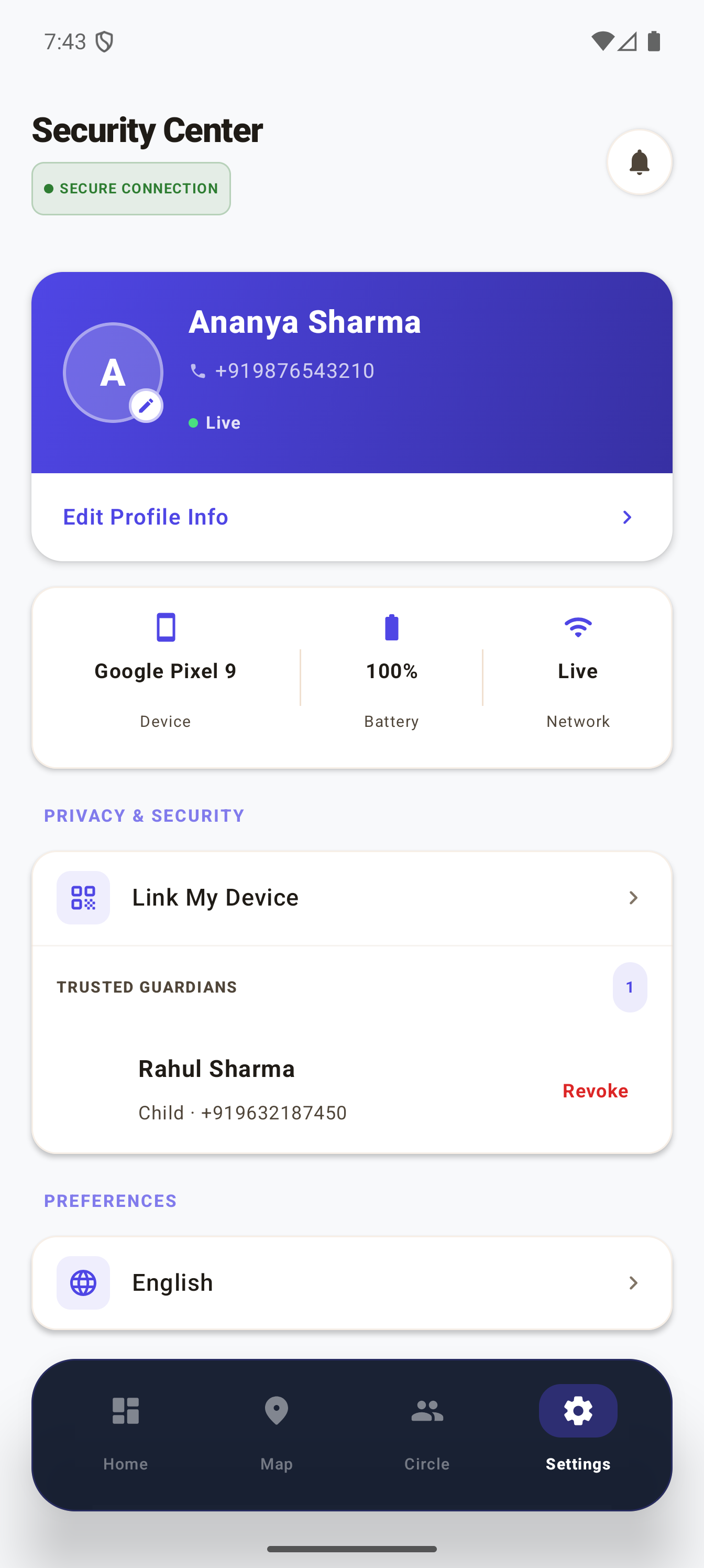
Settings — profile, guardians, and preferences
From Settings you can:
- Edit your name and profile info
- See your device details (model, battery, network status)
- View and revoke your Trusted Guardians
- Change app language
- Invite friends via your referral code
- Upgrade to Premium
Location History (Premium)
The Location History feature lets you see where a family member has been over the past 24 hours — a timeline of locations with timestamps. Available for Premium subscribers.
Access it from Settings → My Location History (for your own device) or from a family member's profile in the Circle tab.
Common uses: confirming a child reached school, retracing steps when a phone was last seen somewhere, or reviewing where someone was if they can't remember where they left their phone.
Free vs Premium
| Feature | Free | Premium |
|---|---|---|
| Real-time location sharing | ✓ | ✓ |
| SOS alerts to guardians | ✓ | ✓ |
| Shake to SOS | ✓ | ✓ |
| Ring a family member's phone | ✓ | ✓ |
| Flash a family member's phone | ✓ | ✓ |
| Add unlimited circle members | ✓ | ✓ |
| Remote Lock (Lost Mode) | — | ✓ |
| Anti-theft snapshots | — | ✓ |
| Location History (24h) | — | ✓ |
To upgrade: go to Settings → Upgrade to Premium inside the app.
Common Issues and Fixes
Location isn't updating when the phone is idle
Almost always a battery optimization issue. Go to Settings → Battery → Battery optimization → Raksha → Don't optimize. On Xiaomi, also enable Auto-start for Raksha. See our full brand-by-brand guide for Motorola, Samsung, Realme, and others.
Ring / Flash / Lock not working
The target phone must be online and Raksha must be running in the background. If the phone appears offline, ask the person to open Raksha once to reconnect.
Not receiving SOS alerts
Check that Notifications are enabled for Raksha: Settings → Apps → Raksha → Notifications → Allow. Also confirm you're listed as a Guardian for the person who triggered the SOS.
Family member not appearing on map
Both sides must have accepted the circle invite. In the Circle tab, a "Pending" badge means they haven't accepted yet — ask them to open Raksha and approve.